Where and How to Create NSFW AI Image-to-Video
Why This Is More Complicated Than You Think
You'd think the answer to "where can I turn my AI image into a NSFW video" would be a single link. It's not. This question actually sits at the intersection of four different challenges: content moderation policies (most platforms ban adult content), AI model capabilities (not all models handle video well), cost (credits burn fast when you're experimenting), and hardware (local tools need a powerful GPU).
This guide walks through every available path — from browser-based platforms to fully local setups — and explains the real trade-offs of each. No fluff, no sales pitch, just what actually works and what it costs.
Image-to-Video Workflow, Hardware and Character Consistency
Everything in one place: pick a web tool or local model, size your GPU setup, and fix the most common failure modes — from workflow basics to character consistency.
Workflow from image to video
Start with a clean still image, decide how explicit the target clip should be, then pick either a browser generator for speed or a local workflow for maximum freedom.
Hardware and cloud GPU choices
Local Wan, LTX and FramePack workflows depend heavily on VRAM. If you do not own a 12GB+ GPU, cloud GPU rental or the built-in web generator is usually the more practical first step.
Consistent characters and failure fixes
Most failures come from face drift, mismatched resolution, weak source images, or camera motion that changes the face too aggressively. Use stable source frames, matched output size and restrained motion prompts.
Before You Start: Figure Out What You Actually Need
Before choosing a tool, answer these four questions. Your answers will determine which path makes sense.
Where does your source image come from?
The starting image matters more than you'd expect. AI-generated images (from tools like Flux or Stable Diffusion) are the easiest to animate — they're already "clean" data that AI models understand well. Fan art or illustrations may require extra processing. Real photos of real people face the strictest restrictions: many platforms outright refuse to process recognizable human faces, even in AI-generated realistic styles.
How explicit is "NSFW" for you?
"NSFW" covers a huge spectrum. Some people just want to avoid getting their swimsuit photos or mildly suggestive artwork flagged by overzealous content filters. Others want full nudity or explicit content. Many users aren't creating extreme content at all — they're just tired of their completely harmless images being "mis-killed" (incorrectly blocked) by automated moderation. Knowing where you fall on this spectrum determines whether a slightly relaxed platform works, or whether you need fully uncensored tools.
How long of a video do you need?
- Micro-motion loops (1-2 seconds): Hair blowing, eyes blinking, subtle breathing. Easiest to generate, works on almost any tool.
- Short narrative clips (3-6 seconds): Head turns, body movement, pose changes. This is what most image-to-video models are designed for.
- Longer clips with audio/lip-sync (10+ seconds): Currently at the bleeding edge. Few tools handle this well, and those that do are expensive.
What's your budget?
- $0: Free tools exist but come with heavy limitations (slow, lower quality, or tricky prompt workarounds).
- $10-50/month: Most web platforms fall here. Pay-as-you-go options let you control costs better.
- Cloud GPU rental: $0.22-0.60/hour, best if you want local-level freedom without buying hardware.
- Buy your own GPU: $700-1,600+ upfront, but $0 per generation forever after.
Mainstream Platforms and Benchmarks
Before diving into the full list, you need to understand three "reference points" that come up constantly in community discussions. Nearly every other tool gets compared to one of these.
Grok / Grok Imagine (by xAI)
Grok is the ease-of-use benchmark. You upload an image, type a prompt, and the AI does everything: preserving the face, adjusting the pose, enhancing details — all in one step. It's the closest thing to "one click" that exists for image-to-image and image-to-video.
What makes Grok special is how well it maintains facial identity when changing a pose or expression. Most other tools distort faces when the angle changes; Grok handles this better than almost anything else.
The downsides: Grok still applies soft content filters (some NSFW content gets through, some doesn't — it's inconsistent). Free video clips max out at 6 seconds. And recently, xAI moved some popular models (like Vidu Q3) behind a paywall, frustrating users who relied on previously free features. Rated roughly 4.8/5 for openness among mainstream AI tools, but it's far from "anything goes."
Throughout this guide, when a tool is described as "Grok-like," it means it aims for that same easy, all-in-one experience.
ComfyUI (Local Framework)
ComfyUI is the flexibility benchmark. It's a free, open-source program you install on your own computer. Instead of a simple "upload and generate" interface, ComfyUI uses a node-based workflow — imagine a flowchart where each box does one job (load the image, run it through the AI model, assemble the video frames, export the file).
This means you have total control over every step of the process, but it also means you need to understand concepts like:
- Text encoder: The component that interprets your text prompt.
- Diffusion model: The AI "brain" that generates the actual image or video frames.
- VAE (Variational Autoencoder): Translates between the format humans see (pixels) and the format the AI works with internally (latent space).
ComfyUI is where most local open-source models are run. If you see a model recommended for local use later in this guide, you'll almost certainly run it through ComfyUI.
Getting started is easier than it sounds: Download ComfyUI Desktop (a one-click installer, no Python knowledge needed). Then go to Workflow → Browse Templates → Video, and load a pre-made template. Your first video can be ready in under 10 minutes.
Hugging Face
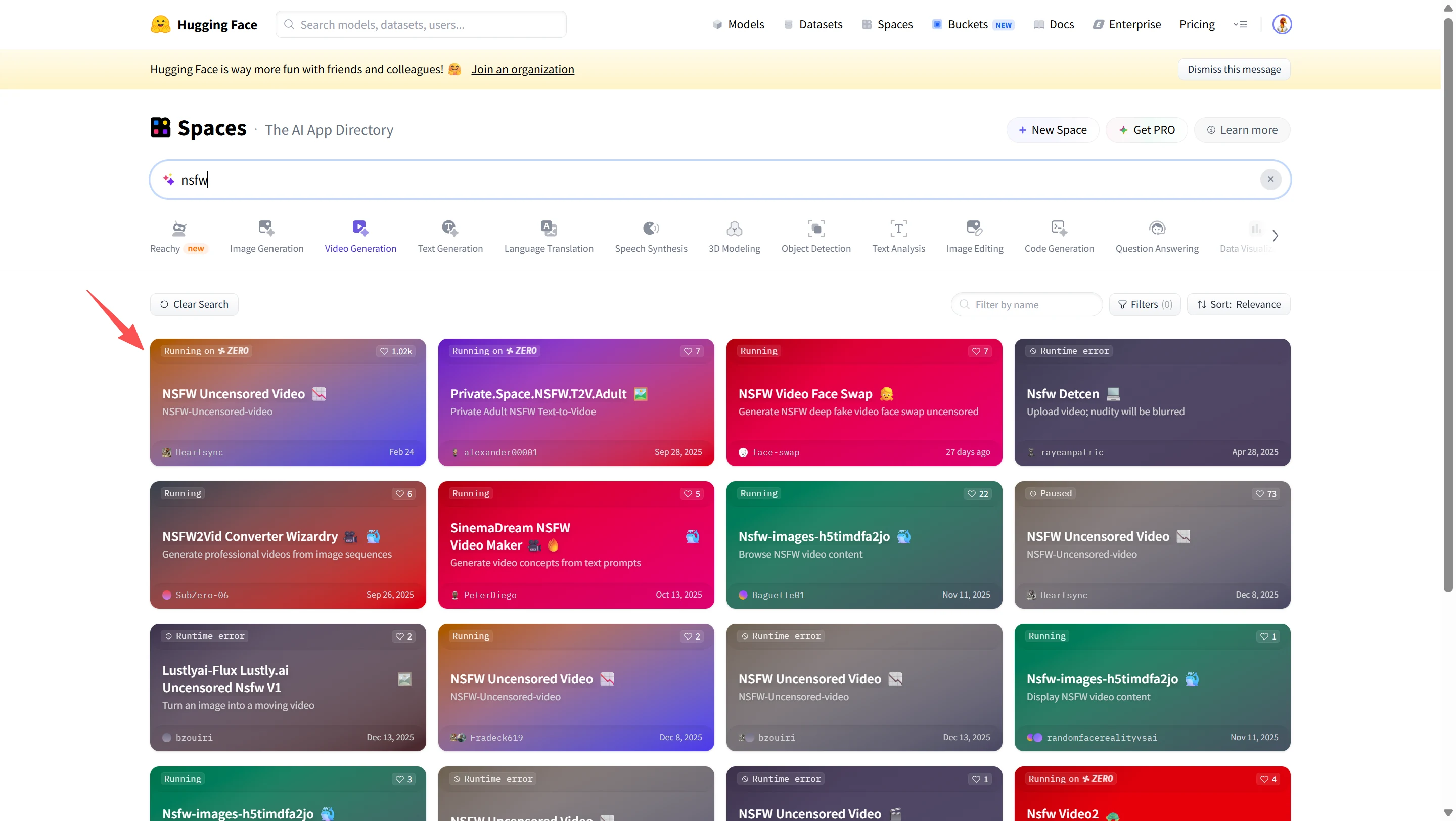
Hugging Face is a free model hosting platform — think of it as a library where AI researchers publish their models for anyone to use. It offers free image-to-video and text-to-video demos (called "Spaces") that you can try directly in your browser.
The upside: completely free. The downside: you need to write very detailed prompts, there are generation limits (often a few per hour), and the interface can feel intimidating. Some "zero-GPU Spaces" let you test video models without any hardware, but with longer wait times.
Web-Based Generation Platforms
Browser-based platforms are the easiest way to get started — no installation, no hardware requirements, just open a webpage. But choosing the right one matters a lot, because they differ wildly in pricing, quality, content policies, and features.
A critical warning: "Uncensored" in marketing copy doesn't always match reality. The same prompt can produce completely different results (or get blocked entirely) on different platforms. Some platforms also silently modify your prompts — their AI assistant may strip NSFW keywords before submitting to the generation model, without telling you.
Pay-As-You-Go / No Subscription Lock-In
Premium Quality / Higher Price
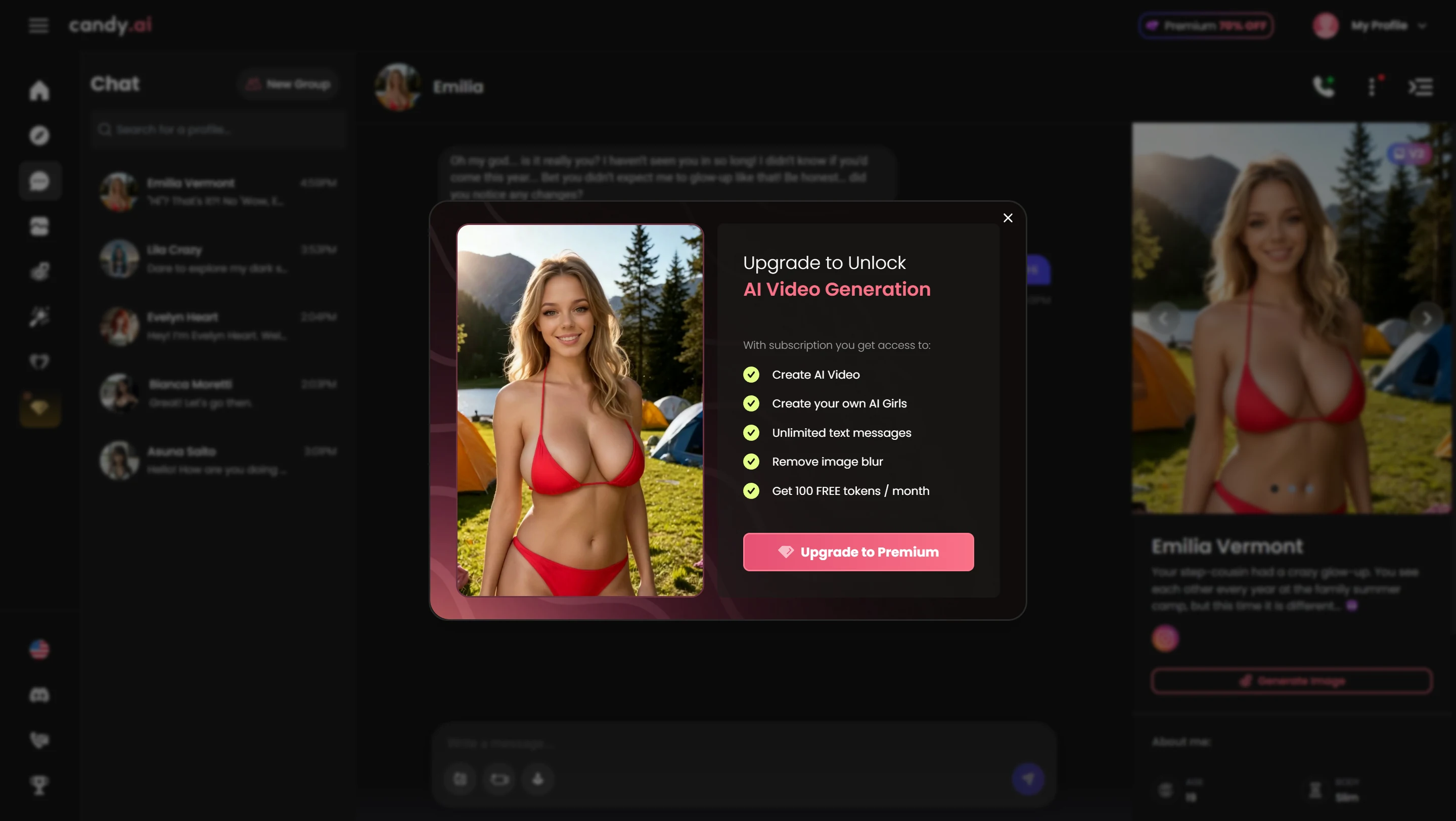
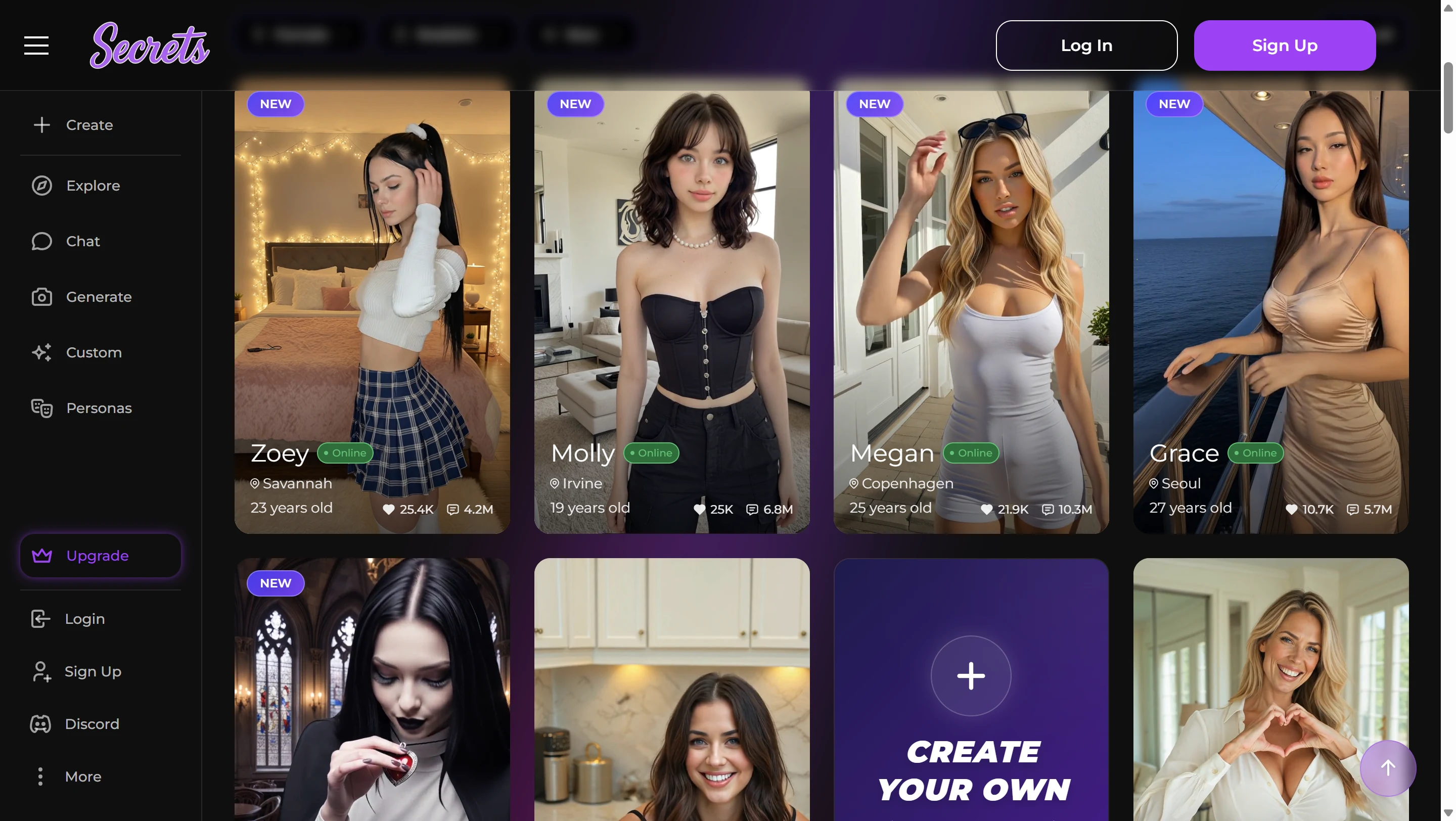
All-Rounders / Character Consistency
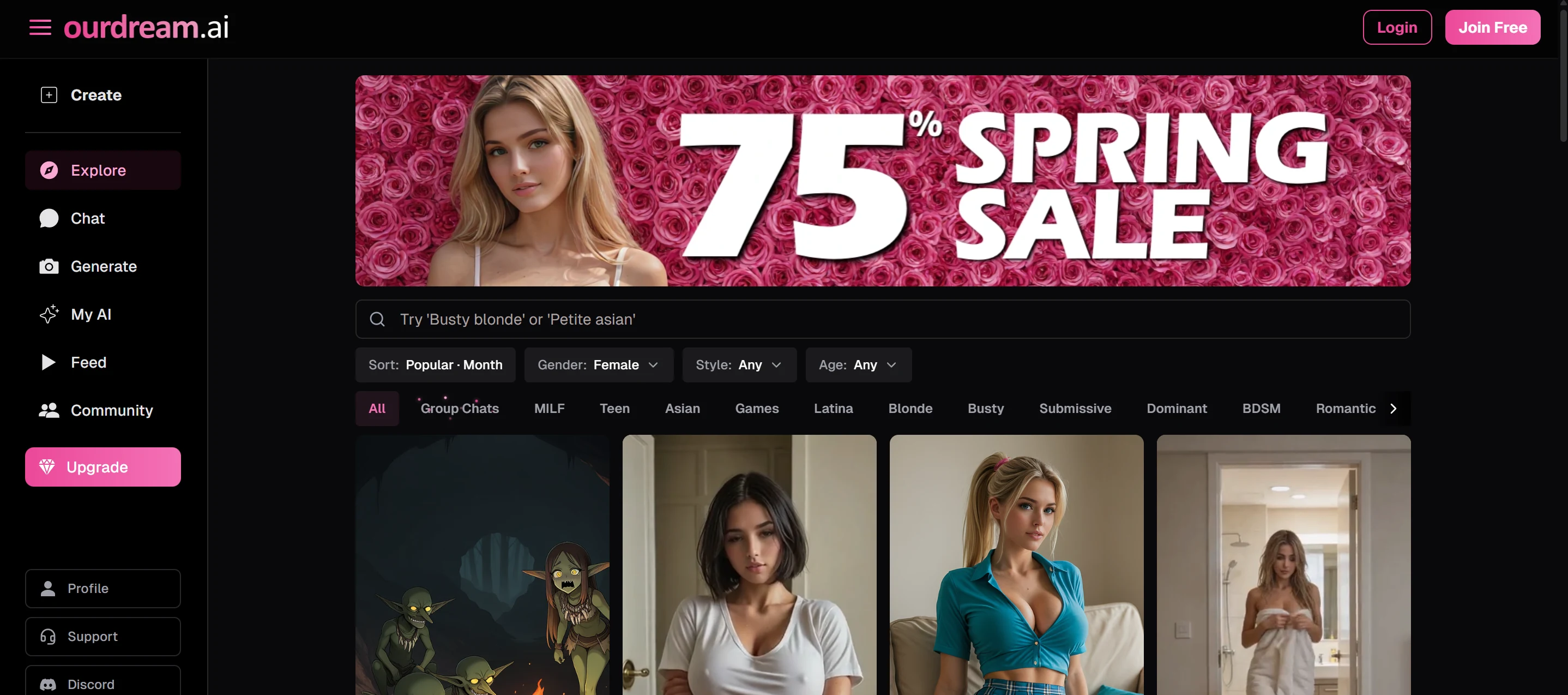
Free / Low-Cost Options
Key takeaways for web platforms:
- "Uncensored" marketing ≠ actual behavior. Test before committing money.
- Aggregator platforms that resell other models' APIs (like those reselling Kling) often strip features — missing start/end frame controls, missing Elements, etc.
- Upload restrictions vary: some platforms block uploads of realistic-looking human faces, even AI-generated ones.
Local Deployment and Open-Source Models
Running AI locally means downloading models to your own computer. The advantages: zero content restrictions, no per-generation cost, and complete privacy (nothing leaves your machine). The disadvantage: you need a decent GPU and willingness to learn a new tool.
Many users move to local setups after a specific trigger: a platform tightens its NSFW filters, free credits dry up, or prices increase. Grok censoring NSFW artwork has been a direct push for many.
Image-to-Video Models
Wan 2.1 / Wan 2.2 (by Alibaba's Tongyi Lab)
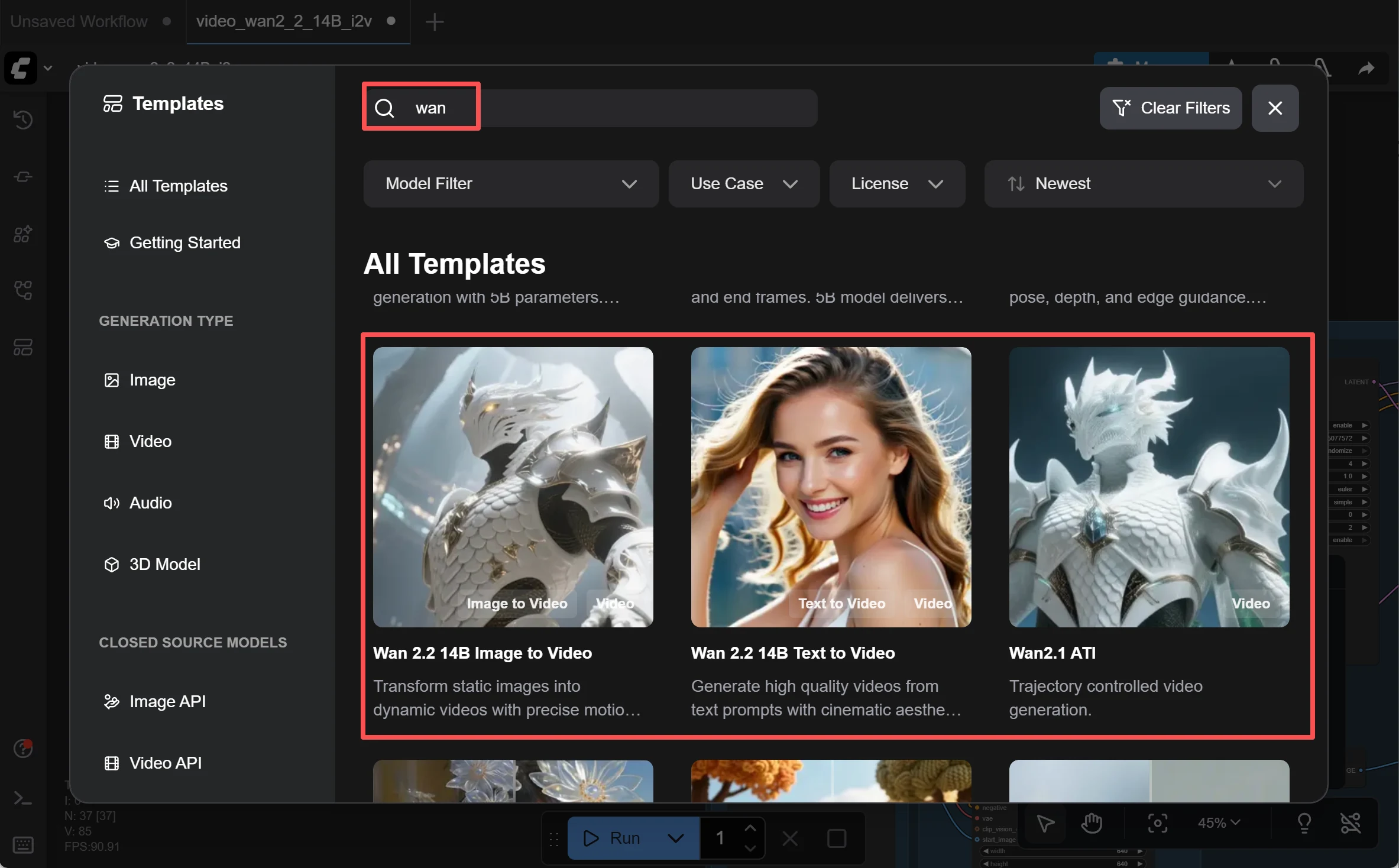
The most recommended open-source video models.
Wan 2.2 is considered the peak of open-source video generation. When doing image-to-video, the experience is described as "Grok-like" — it preserves facial features remarkably well during animation. It uses a Mixture-of-Experts (MoE) architecture: imagine two specialist "brains" — one handles the big-picture composition in early stages, the other refines fine details in later stages. This doubles the model's capacity to 27 billion parameters while only using 14B at any given moment, keeping VRAM usage reasonable (18GB on an RTX 3090).
Wan 2.1 is the earlier, more established version. Slightly lower quality (480p vs 720p@24fps for 2.2), but extremely well-documented with abundant community resources. Runs on an RTX 4090 (24GB VRAM), generating a 5-second clip in about 4 minutes.
Critical version note: Both 2.1 and 2.2 are fully uncensored. However, Wan 2.6 (the newer cloud-only commercial version) adds NSFW restrictions. If unrestricted generation matters to you, stick with 2.1 or 2.2.
Community-made "Spicy" variants of Wan 2.2 are fine-tuned on adult-specific datasets for improved anatomy, skin textures, and natural-looking motion.
LTX-2 — Another open-source image-to-video option. On the Civitai community platform, creators have developed dedicated uncensored LoRAs (explained below) for LTX-2, with ready-made workflows for NSFW video generation.
FramePack F1 — A significant recent development because it runs on as little as 6GB VRAM. That means a GTX 1660 or a budget RTX 3060 can generate video. It works through "next-frame prediction" — generating one frame at a time instead of all at once, dramatically reducing memory needs. Trade-off: it's slower, taking several minutes for a 3-4 second clip. But it makes video generation accessible to almost anyone with a discrete GPU.
Image Generation / Editing Models
These generate the still image that you then animate, or edit existing images:
Flux 2 Klein (9B) — A 9-billion parameter model from Black Forest Labs, designed for fast text-to-image and multi-reference image editing. Combined with the KV Edit workflow (a technique that caches image data for faster processing) and the SNOFS LoRA ("Sex, Nudes, Other Fun Stuff" — yes, that's the real name), it enables uncensored image generation and editing. The honest feedback: expect to generate dozens of attempts before getting a satisfactory result. High potential, but inconsistent. Requires approximately 29GB VRAM at full precision.
SDXL / Pony Diffusion — Run locally with enhancement tools like Detailer (which refines faces and hands), these models generate images in any style without restrictions. SDXL handles photorealism well; Pony Diffusion is the community favorite for anime and illustration styles.
Z-Image (ZIT) — Produces extremely realistic images, but has a significant limitation for image-to-image workflows: it tends to completely replace the original person rather than modifying them. Upload a reference photo hoping to change the pose, and you'll get a completely different person in that pose. Useful for standalone generation, frustrating for character-consistent editing.
Qwen Edit / Flux Kontext — Positioned as open-source alternatives to Grok's image editing capabilities. Community verdict: disappointing. Extremely high failure rates, requiring many generations to get one usable output. Not recommended as primary tools.
What Are LoRAs?
LoRA (Low-Rank Adaptation) is a technique that lets you "teach" an existing AI model new skills without retraining the entire thing. Think of it like adding a small plugin to a large program — the plugin is tiny (usually 10-200MB), but it changes the model's behavior in specific ways.
For NSFW use cases, community creators train LoRAs that improve the base model's handling of adult content: better anatomy, specific art styles, or particular content types. You download a LoRA file and load it alongside your main model in ComfyUI. Civitai is the largest community platform for sharing LoRAs and ComfyUI workflows.
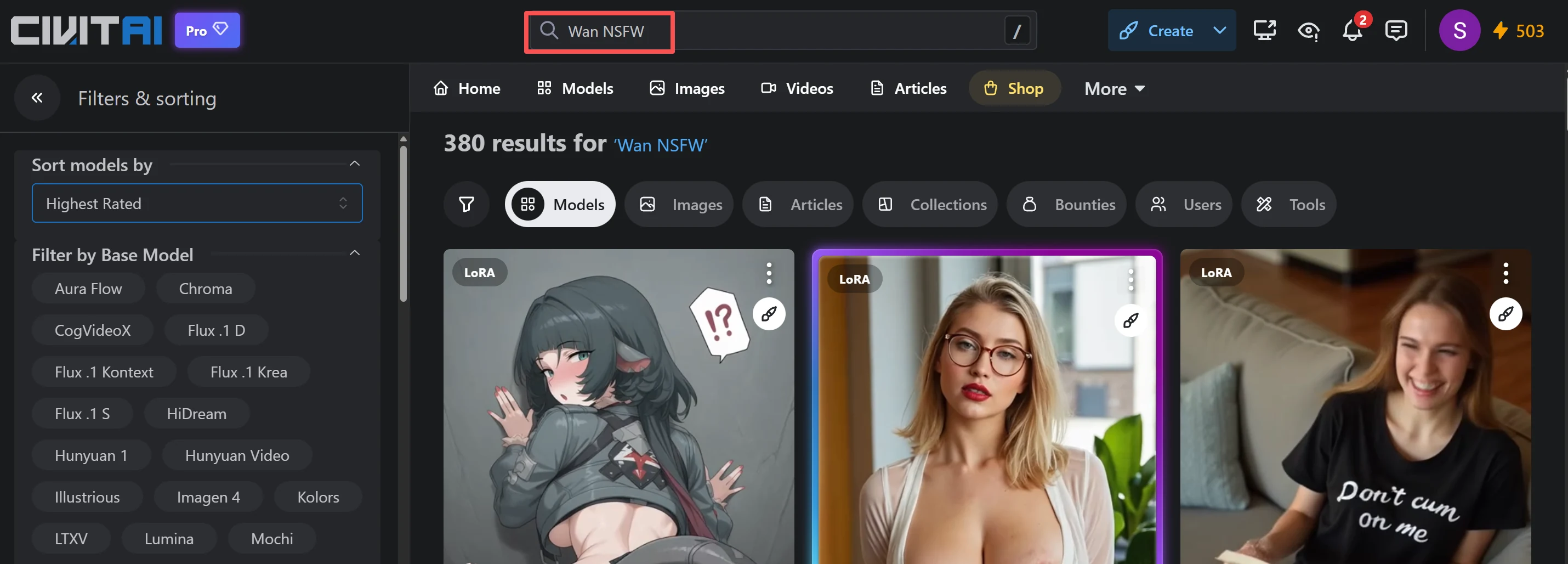
Helpful Tools and Extensions
These tools don't generate images or videos themselves, but they solve specific friction points in the workflow.
Prompt Writing
Ellydee — Nicknamed the "dirtiest version of ChatGPT." Its purpose: helping you write extremely detailed prompts for AI image generators. Writing effective prompts is harder than most people expect — vague prompts produce vague results. Ellydee generates the kind of exhaustive, descriptive prompts that models like Z-Image and Qwen Image need to produce good output. If you're struggling with prompt quality, this is the first tool to try.

Cloud GPU Rental: Local Freedom Without Buying Hardware
Cloud GPU rental is the middle path: you get the same freedom as a local setup (run any model, no content restrictions, full ComfyUI access), but you're renting someone else's GPU instead of buying your own.
How It Works
You sign up on a cloud GPU platform, select the hardware you want, and get access to a remote server. You install ComfyUI and your models on this server, then access it through your web browser. When you're done, you stop the instance and stop paying. Billing is typically per second or per hour.
Common Platforms
| Platform | RTX 3090 (24GB) | RTX 4090 (24GB) | A100 (40GB) | Best For |
|---|---|---|---|---|
| Vast.ai | ~$0.22/hr | ~$0.31/hr | ~$0.29-1.00/hr | Lowest prices (marketplace model) |
| RunPod | ~$0.24/hr | ~$0.32/hr | ~$0.60-0.89/hr | Easiest setup (pre-built templates) |
| TensorDock | ~$0.28/hr | ~$0.40/hr | ~$2.25/hr | Alternative option |
RunPod offers pre-configured ComfyUI templates — you launch an instance and ComfyUI is already installed and ready. Vast.ai requires more manual setup but is usually 10-30% cheaper.
RunPod also offers direct serverless API access to models like Wan 2.1, Wan 2.2, and Seedance at per-request pricing (e.g., Wan 2.2 I2V 720p at $0.30 per 5-second clip), if you don't want to manage a server at all.
Who Is This For?
- You want local-level control but your computer's GPU isn't powerful enough
- You generate content occasionally (a few hours per week), making hourly rental cheaper than buying a $1,600 GPU
- You already know how to set up ComfyUI workflows
Important Caveat
Some managed ComfyUI hosting services (not self-hosted, but pre-built cloud workflows) may apply their own content moderation even on rented GPUs. If unrestricted generation matters, make sure you're renting raw GPU access and installing ComfyUI yourself, not using a hosted service with built-in filters.
Hardware Reality: Is Your GPU Good Enough?
If you're running locally, your GPU's VRAM (video memory) is the bottleneck. Video generation needs significantly more VRAM than image generation.
VRAM Tiers
| VRAM | Image Generation | Video Generation | Example GPUs |
|---|---|---|---|
| 6-8 GB | SD 1.5, SDXL (basic). Flux Dev with quantization. | FramePack short loops (3-4 sec). AnimateDiff only. | GTX 1660, RTX 4060 |
| 12 GB | SDXL at full quality. SD 3.5 with optimization. | Wan 2.1 (1.3B small model, 480p). LTX-Video basic. | RTX 3060 12GB |
| 16 GB | Most image models comfortably. Flux (full precision). | Wan 2.2 5B hybrid model. HunyuanVideo with offloading. 720p possible. | RTX 4070 Ti Super, RTX 5070 Ti |
| 24 GB | Everything at full quality. LoRA training possible. | Wan 2.2 14B, LTX-2 optimized. Most 2026 models. | RTX 3090, RTX 4090 |
| 32 GB | All models at max quality. | All current models including 4K. Future-proofed. | RTX 5090 |
System RAM
VRAM gets all the attention, but system RAM matters too. Many workflows use "offloading" — temporarily moving parts of the model from GPU memory to system RAM when not actively needed. With only 16GB of system RAM, offloading is limited and may cause crashes. 32GB is comfortable; 64GB is ideal for heavy workflows.
The AMD Problem
If you have an AMD GPU, the situation is... complicated. AMD's ROCm (their equivalent of NVIDIA's CUDA) has ongoing compatibility issues with AI generation tools:
- On Windows: VAE processing (a critical step in both image and video generation) frequently crashes, hangs, or runs extremely slowly — sometimes taking 500+ seconds for a step that completes in 10 seconds on NVIDIA. Setting environment variables like MIOPEN_FIND_MODE=2 or disabling certain backends helps, but the experience remains rough.
- On Linux: Significantly more stable, but still requires troubleshooting that NVIDIA users never encounter.
Bottom line: If you're buying hardware specifically for AI generation, NVIDIA is the safer choice. If you already own an AMD GPU, dual-booting with Linux gives you the best chance of a workable setup.
Buying Advice
- Best value: A used RTX 3090 ($700-900) gives you 24GB VRAM — enough for all current models at good quality.
- Best performance: RTX 4090 ($1,600+) is faster with the same 24GB VRAM.
- Future-proofing: RTX 5090 ($2,000+) with 32GB handles everything including 4K and is ready for next-generation models.
- Budget option: A used RTX 3060 12GB ($150-200) lets you get started with lighter models and FramePack, but quality is limited.
The Real Cost of "Free"
Running locally means $0 per generation, but the actual costs include: electricity (a gaming GPU under load draws 200-350W), hardware depreciation, and most importantly, learning time. Budget at least a weekend to go from zero to generating your first decent video.
Common Problems in Image-to-Video (Every Path)
These problems hit beginners regardless of whether they use online platforms or local tools:
Face Collapse
The AI doesn't truly "understand" who is in your image. It's making statistical guesses about what comes next. With only a single reference image, there's not enough information for the AI to maintain consistent facial features — especially when the angle changes (e.g., turning from front-facing to profile). Result: the face morphs into something different mid-video.
How to fix it: Use front-facing, well-lit source images. Some models (Wan 2.2, Grok) handle this better than others. For local setups, face-specific LoRAs can help.
The "Moving JPEG" Effect
Instead of actual motion (limbs moving, body shifting), the AI merely warps and stretches the original image. The character doesn't really move — it looks like a still photo being pulled around. This is more common with lower-quality models and short prompts.
How to fix it: Use specific motion keywords in your prompt: "slow head turn," "gentle sway," "cinematic camera pan." Avoid static descriptions.
First Frame Misalignment
You upload a specific image, but the video's first frame doesn't match it. The AI "reinterprets" your image before starting the animation, subtly changing poses, colors, or composition.
How to fix it: Use platforms/workflows that support start-frame locking. In ComfyUI, certain nodes allow you to force the first frame to exactly match your input.
Uncontrollable Camera
The AI adds automatic zooms, pans, or slow-motion that you didn't ask for and can't disable. Every output has the same slow push-in or drift, regardless of your prompt.
How to fix it: Explicitly state camera behavior in your prompt: "static camera, no zoom, no pan." Some models respect this better than others.
Prompt Sanitization (Silent Censorship)
Some platforms run your prompt through a secondary AI that removes or replaces NSFW keywords before passing it to the generation model — without telling you. You type something explicit, but the model receives a sanitized version, producing SFW output that doesn't match your intent.
How to fix it: If your output seems to ignore NSFW elements, test with a very simple explicit prompt first. If that also produces clean output, the platform is likely sanitizing prompts.
Z-Image "Person Replacement" Problem
When using Z-Image (ZIT) for image-to-image editing, the model tends to completely replace the original person with someone new, rather than modifying the existing person. You want to change the outfit on Character A; you get Character B in the new outfit.
How to fix it: Use models specifically designed for consistent editing (Flux 2 Klein with KV Edit, or Wan 2.2 for video). Z-Image is best used for standalone generation rather than editing.
Self-Checklist: Find your Best NSFW Image to Video AI Generator
Use these questions to quickly narrow down your options:
1. How explicit is your content?
- Swimwear/suggestive → Many online platforms work. Try Grok first.
- Full nudity → Need explicitly NSFW platforms (Deep-Fake.ai, Fiddl.art, SoulGen) or local setup.
- Extreme/niche content → Local setup is the only reliable option.
2. Does your reference image contain a realistic human face?
- No (anime, illustration, abstract) → Most platforms accept these. Fewer restrictions.
- Yes (photorealistic or real photo) → Use FaceFusion.co for face swapping or Deep-Fake.ai for image-to-video with high face consistency.
3. What type of video output do you need?
- Micro-motion loops (1-2 sec) → Any tool works, including free options.
- Standard clips (3-6 sec) → Deep-Fake.ai, Wan 2.2 (local), or Grok (mainstream).
- Longer narrative with audio → Currently very limited; chain multiple clips manually.
4. What's your budget?
- $0 → Deep-Fake.ai (free trial), Hugging Face Spaces, or FramePack local (needs GPU).
- $10-50/month → SoulGen, Candy AI, or Omnicreator.
- Per-use/occasional → Cloud GPU rental ($0.22-0.60/hr) or Fiddl.art credits.
- One-time investment → Buy a GPU ($700-1,600), use ComfyUI forever for free.
5. Are you willing to learn a local workflow?
- No → Online platforms only. Start with Deep-Fake.ai for the fastest path from zero to video.
- Yes → Install ComfyUI + Wan 2.2. Budget a weekend for setup and learning.
6. Does data privacy matter to you?
- Not concerned → Online platforms are fine.
- Want privacy → Local setup (nothing leaves your machine) or cloud GPU you control directly.
Ready to Try? Start with Deep-Fake.ai
If you've read this far and just want to get started right now without any setup headaches, Deep-Fake.ai is built for exactly that.
Here's what makes it the easiest entry point:
- NSFW Image-to-Video with high face consistency — Upload any image, describe the motion you want, and the AI generates a realistic video clip while keeping the character's face intact throughout. No identity drift, no face collapse.
- Truly zero censorship — Your prompts are never silently filtered, sanitized, or rejected. What you type is what the AI receives. No "mis-kills," no guessing why your output looks wrong.
- Nothing to install or download — The entire platform runs in your browser on cloud GPUs. Works on any device — phone, tablet, or PC. No Python, no ComfyUI, no GPU requirements on your end.
- Free trial included — Sign up for free with no credit card required. Get trial credits to test image-to-video, text-to-video, face swap, and image generation before committing a single dollar.
Whether you're a complete beginner testing the waters or an experienced creator looking for a fast, unrestricted workflow, Deep-Fake.ai lets you go from idea to finished video in under 60 seconds.
Start Creating for Free →